

The Intents Swap Widget lets you integrate a fully functional, cross-chain swap interface into your application in just a few lines of code.Documentation Index
Fetch the complete documentation index at: https://docs.near-intents.org/llms.txt
Use this file to discover all available pages before exploring further.
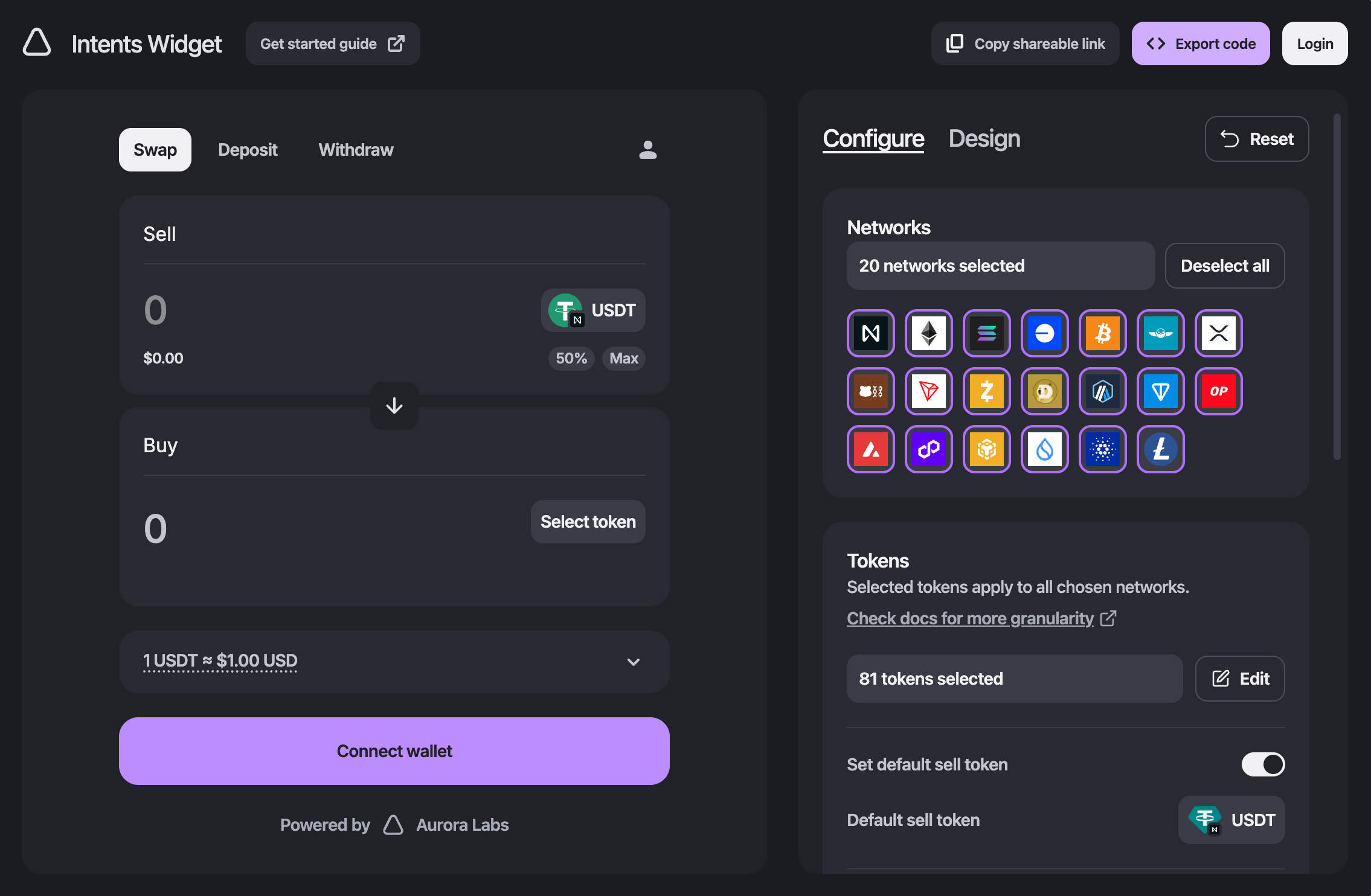
Quickstart
Install package
Install the widget package using your preferred package manager:Alternatively, if you want to use the widget in standalone mode with embedded wallet connection mechanisms:
Set up
Wrap your app, or just the area where the widget appears, with the There are also individual
WidgetConfigProvider, then render one of our prebuilt widgets within it.For example, the snippet below shows how to render the combined widget.WidgetSwap, WidgetTransfer, and WidgetWithdraw widgets.For a full list of configuration options, see the Configuration page.Styling
To apply styles, you need to import the package styles into your app’s stylesheet, for example:For more details about the available theming options, see the Theming page.
Connect a wallet
If you are using standalone mode, the wallet connection mechanism is built in.If you want to use your existing wallet integration (e.g., AppKit, Provy, TonConnect), you can pass the connected address via the
connectedWallets config option.Here is an example that assumes you are using AppKit and have a hook that provides the wallet address and a button for connecting.